
For Android TV and Google TV

Digital signage on Android TV and Google TV

Many TVs and professional displays, such as Sony’s, run Android TV or Google TV. Install the Lumicast app on the display itself, pair it with Lumicast and manage your content in your browser. You don’t need a separate media player.

No payment details needed. For displays running Android 5 or later.

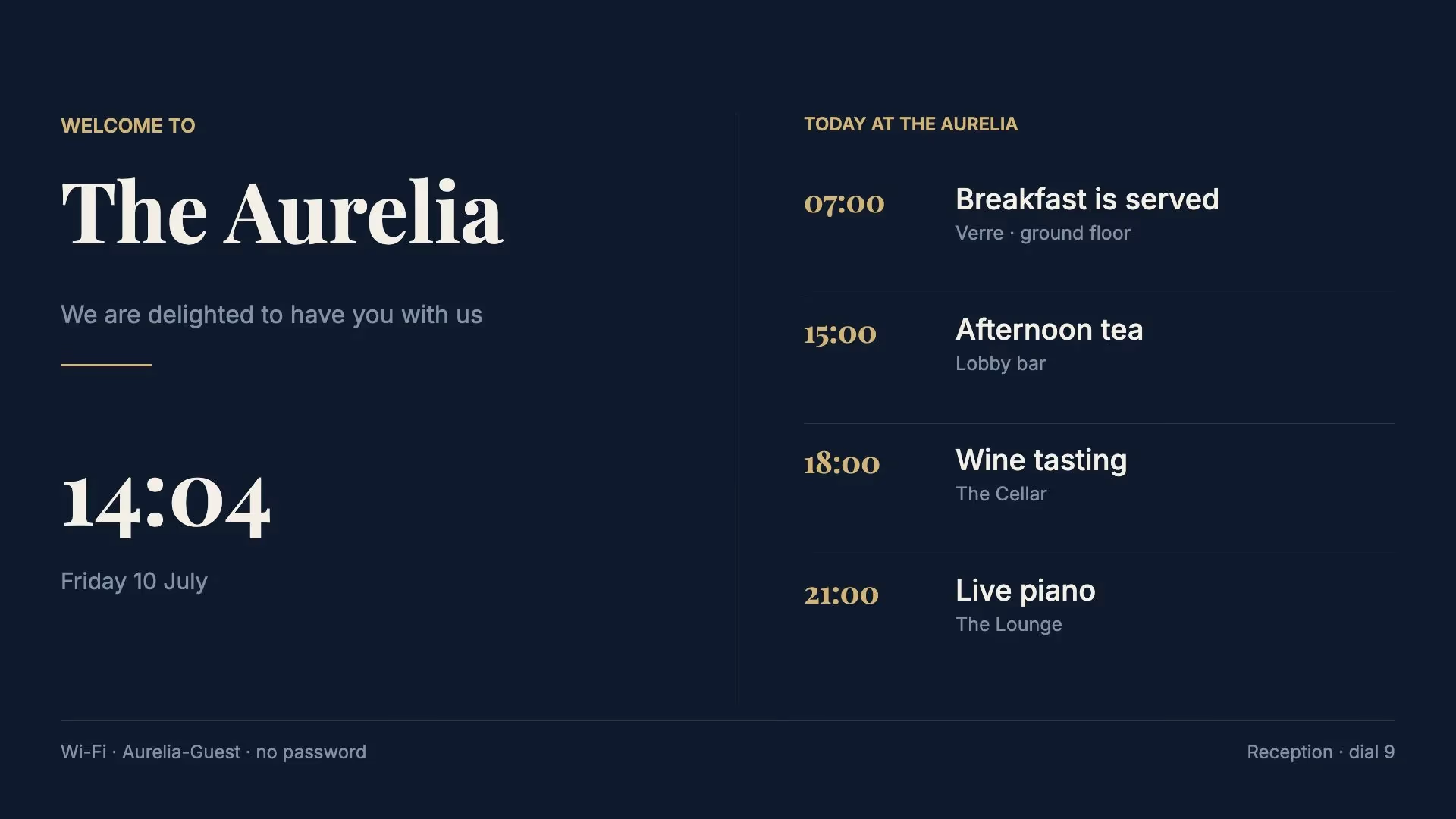
A hotel welcome page on a display
Lumicast app from Google PlayDedicated signage mode

What you need

The display is the player, so there is little to buy. All you need is:

  • A TV or professional display running Android TV or Google TV, or an Android box on its HDMI port
  • Android 5 or later, and Google Play on the display for the simplest setup
  • A network connection, over Wi-Fi or a cable
  • For a dedicated signage display: a Windows, Mac or Linux computer on the same network, for one step

Does my display work?

The Lumicast app runs on displays, TVs and boxes with Android 5 or later. The steps are the same for Android TV and Google TV; the menu names differ a little per brand. We wrote the guide for dedicated signage displays on a Sony BRAVIA with Google TV. Philips professional displays have a page of their own.

Not sure? Ask us →

Two ways to run Lumicast on Android TV.

The app from Google Play is the quick start. A dedicated signage device takes more setup, and is meant for displays that nobody looks after.

The app from Google Play

Install it like any other app, and manage it from the display’s menu.

  • Install Lumicast Signage Player from Google Play
  • Turn on Launch on boot in the app’s menu
  • Updates come through Google Play
  • Needs Google Play, so a Google account on the display

Suits a few displays, or trying Lumicast out.

A dedicated signage device

Lumicast becomes the owner of the display. It starts, updates and recovers by itself, and nobody leaves it by accident.

  • Uses the Lumicast APK, not the Google Play app
  • Set up once from a computer on the same network
  • Needs a display without a Google account
  • Undoing it takes a factory reset

Suits every display that runs unattended.

How to put Lumicast on your Android TV.

All you need is the display and its remote. The menu names below can differ a little per brand.

  1. Install the app

    Open Google Play on the display, search for Lumicast Signage Player and install it.

  2. Turn on Launch on boot

    Open the app and press OK on your remote to open its menu. Choose Launch on boot and allow Display over other apps when Android asks. A green checkmark means it is on.

  3. Keep the display awake

    Many Android TVs switch themselves off after a few hours without the remote, even while Lumicast plays. Set Energy saver, Idle TV standby or Auto power off to Never. Lumicast’s menu warns you when the display will switch itself off.

  4. Pair your display with Lumicast

    Add a display in Lumicast and enter the pairing code that appears on your display. Then restart the display from its settings to check that Lumicast comes back.

The window for connecting a Lumicast player, with a field for the pairing code the display shows.

Set it up as a dedicated signage device.

For a display that nobody looks after, Lumicast can take over the display itself. This is what changes:

Starts when the display powers on

You don’t need to turn on Launch on boot.

Updates by itself

New Lumicast versions install without prompts: at start-up, overnight between 02:00 and 05:00, and when you choose Upgrade in the dashboard.

Stays on Lumicast

Home, Recents and notifications do nothing, so nobody leaves the player by accident. Someone who needs to can still open the display’s Android settings from Lumicast’s menu.

Comes back by itself

If Lumicast stops unexpectedly, it is back within about a minute. If someone leaves the display in the Android settings, it returns after about 15 minutes.

Never goes to sleep

The display skips the screensaver, and the TV’s energy saver can’t switch it off after hours without the remote. Android system updates install only between 02:00 and 05:00.

Restart from the dashboard

Reboot the display from Lumicast instead of walking over to it.

What it takes

About 15 minutes per display. You reset the display and skip the Google account, install the Lumicast APK, turn on ADB debugging and run one command from a computer on the same network that makes Lumicast the owner of the display. The guide has every step and the fix for each error message. Undoing it takes a factory reset of the display.

Steps for a dedicated signage device →

What Lumicast takes care of on your display.

The app is the player that shows your pages. You set it up once, and from then on you do everything in Lumicast.

See which displays are working

Lumicast shows you whether each display is online and which playlist it is playing.

Check it remotely

Request a screenshot from Lumicast to see what is on the display right now, without walking over to it.

Keeps playing without internet

Content stored on the display keeps playing if the internet drops. New content comes in as soon as the connection is back.

Change content from anywhere

Edit a page or reschedule a playlist in your browser, and the display picks it up. No USB sticks.

Restart the app remotely

If something gets stuck, restart the app from Lumicast.

Mix it with other players

An Android TV in the lobby, a Samsung in the corridor, a Pixie in the canteen: all in the same workspace, with the same pages and playlists.

Android TV, Philips or Fire TV?

All three run the Lumicast app on the display or stick itself. The difference is in how much you look after yourself.

Android TV and Google TV

The display or box is the player. Brands such as Sony need no extra hardware, and with the APK you can make the display a dedicated signage device.

Suits displays you already have, or a TV you buy for the job.

Philips displays

Philips professional displays have Android built in, and a USB stick sets up the app without a media player.

Suits Philips professional displays.

Philips displays →

Fire TV Stick

A low-cost stick for any display with HDMI. It is made for the home, though: starting automatically sometimes takes a computer, and you can’t restart the stick remotely.

Suits displays without Android.

Fire TV Stick →
Compare every player →

Create and schedule your content.

Combine text, images, videos and apps on your page. Start from a template, design it yourself or ask Lumi, our AI designer, for help. Then choose which displays show your page, and when.

What does digital signage on an Android TV cost?

You buy the display or box yourself. The Lumicast app is free. For Lumicast you pay a subscription per display.

From €17 per display per month, billed annually, excluding VAT.

Compare plans →

Questions about Android TV.

Will it work on my Android TV?

If your display runs Android 5 or later, you can install the Lumicast app, from Google Play or as an APK. That covers Android TV, Google TV and most Android boxes. The setup differs a little per brand, so try one display first.

Do I need a Google account on the display?

For the Google Play app, yes: Google Play needs one. For a dedicated signage device it is the other way round: Android only accepts Lumicast as the owner of a display without accounts. On a display that is already in use, that usually means a factory reset.

Can I use an ordinary TV?

Yes, if it runs Android TV or Google TV. Do turn off the TV’s automatic switch-off, though: many Android TVs turn themselves off after a few hours without anyone using the remote. A dedicated signage device is never affected. A professional display is built to stay on all day; a TV for the home often isn’t.

How does the app get updates?

The Google Play app updates through Google Play. The APK updates itself on Android 12 and later: at start-up, overnight between 02:00 and 05:00 and when you choose Upgrade in the dashboard. That needs two permissions, Install unknown apps and Display over other apps.

Does the display keep playing if the internet drops?

Content stored on the display can keep playing. New content and data only come in once the connection is back. Web pages, streams and anything else that needs the internet can’t keep working fully offline.

Can I show videos and dashboards?

Pages with text, images, apps and video are what the app is made for. How smoothly heavy dashboards or 4K video play depends on the display’s processor, so try your own content on the display you plan to use.

Do I need a subscription?

You can try Lumicast free for 14 days, with no payment details. After that, you choose a subscription per display. Without one, your workspace stays available, but your displays stop playing.

Try it on your own Android TV.

Install the app and see how your own content looks on the display.

Try free for 14 days

No payment details needed.