
Starts again after a restart
When the computer restarts, the player opens by itself and carries on where it left off. On Windows, the installer turns this on for you.
For a computer you already have
With the Lumicast player, a computer connected to a display becomes a digital signage player. You install it once, pair it with a code and manage everything from your browser after that.
No payment details needed. For Windows 10 or later, macOS 13 or later and 64-bit Linux.
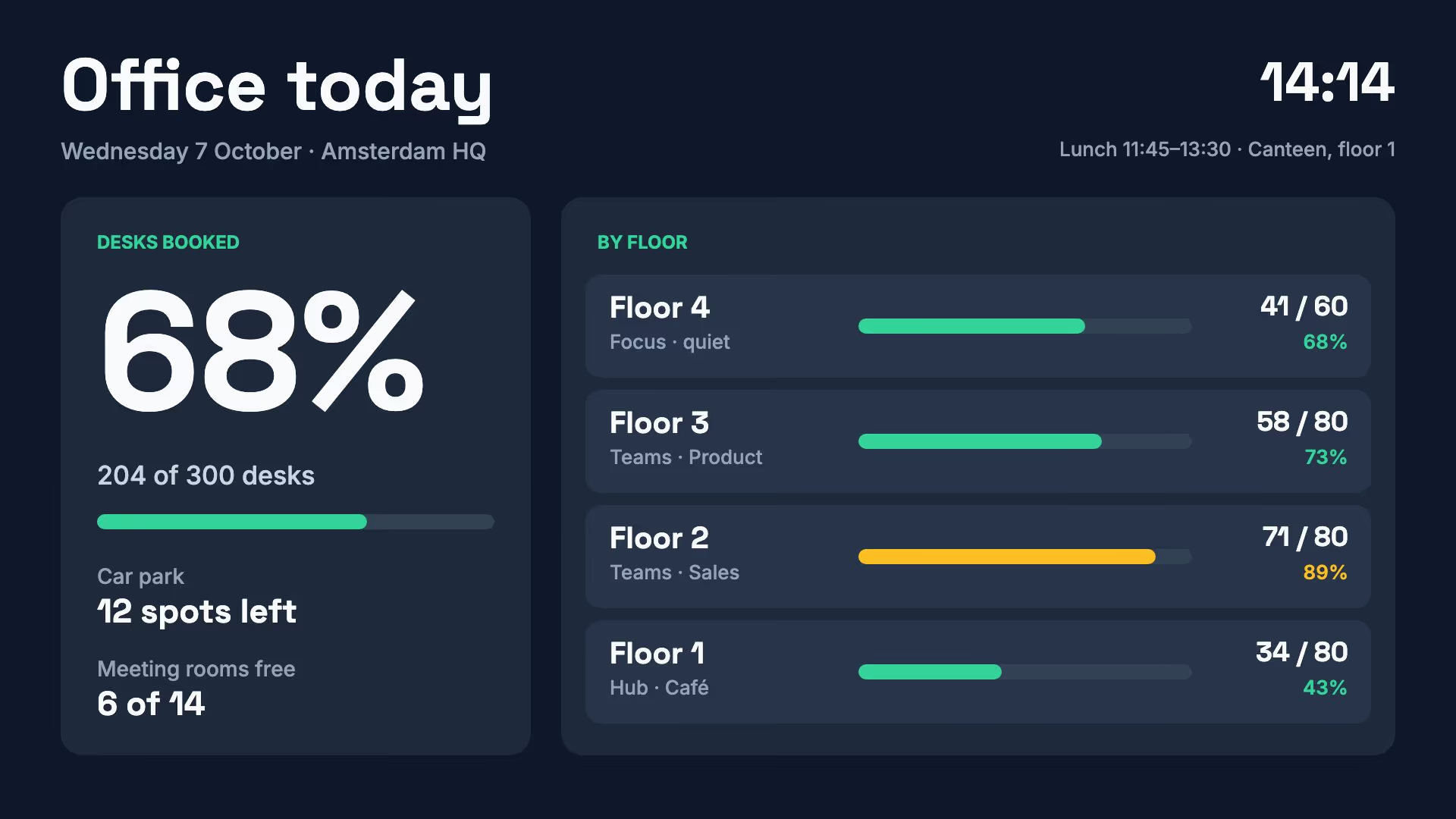
The player shows your pages on the display. You set it up once, and from then on you manage everything in Lumicast.
When the computer restarts, the player opens by itself and carries on where it left off. On Windows, the installer turns this on for you.
Lumicast shows you whether each display is online and which version of the player it runs.
If something gets stuck, restart the display from Lumicast without going to the location.
Stored content keeps playing if the connection drops. New content comes in as soon as the display is back online.
The player looks for a new version when it starts and installs it. You look after the operating system yourself.
Turn on the daily restart and choose a time window, 02:00 to 04:00 by default. It keeps a computer that stays on for days healthy.
It is the same player with the same features. You manage every display in one workspace, even when they run on different systems.

64-bit Windows 10 or later, x64 or ARM64
Download the installer and run it, and the player starts. It turns on autostart by itself. Then set the display and sleep timers in Power Options to Never.
Read the installation guide →
macOS 13 Ventura or later, Intel or Apple Silicon
Open the dmg file and drag the player into Applications. If a security prompt appears, choose Open. Then turn off the screen saver and sleep.
Read the installation guide →
64-bit Linux with a desktop, x64 or ARM64
Download the AppImage, make it executable and start it. You manage the system, the network settings and the security updates yourself.
Read the installation guide →The computer is the player. It doesn’t have to be used only for Lumicast, but a computer that does nothing but drive the display lasts longest.
Announcements, schedules, apps and video up to HD run on nearly any computer that meets the system requirements. For 4K video or dashboards with lots of motion, choose a mini PC with more than 4 GB of RAM, a graphics chip and more than 8 GB of storage.
The display doesn’t need to be there yet: you can prepare the computer at your desk first.
Choose the version for your system on the downloads page. If you’re not sure which one you need, the guide shows how to check.
Run the installer, drag the app into Applications or start the AppImage. The player shows a pairing code.
Turn off the screen saver and sleep, so the display doesn’t go dark after a few minutes.
Add a display in Lumicast and enter the pairing code shown on the display.
All three show the same Lumicast pages. The difference is in what you look after yourself.
You use a computer you already have, or buy one that suits your content. You manage the operating system yourself, including its update and restart settings.
Suits 4K video, heavy dashboards or an IT team that already manages Windows.
A Raspberry Pi with Lumicast OS. The Pixie is ready to use for a one-off €150 excluding VAT. We keep the system and the player up to date; Lumicast OS itself is free for your own Pi 4 or Pi 5.
Suits displays that stay on all day.
Raspberry Pi and Pixie →Professional Samsung, LG and Philips displays run Lumicast without a separate player. That saves a device per display.
Suits new professional displays.
Compare every player →Combine text, images, videos and apps on your page. Start from a template, design it yourself or ask Lumi, our AI designer, for help. Then choose which displays show your page, and when.
The player is free. If you have a computer to spare, you only pay for Lumicast, per display. If you buy one, its price comes on top, once.
From €17 per display per month, billed annually, excluding VAT.
Compare plans →The player needs 64-bit Windows 10 or later, macOS 13 Ventura or later, or 64-bit Linux. Windows 7, Windows 8, 32-bit systems and macOS 12 or older aren’t supported.
It can, but it works best on a computer that only drives the display. The player has to stay in the foreground, and the screen saver and sleep need to be off.
Yes, at player.lumicast.com. That is handy for trying Lumicast out. For a display that runs every day, install the player: it starts again by itself and can be restarted remotely.
That is the idea, and on Windows the installer turns it on. Restart the computer once and check that the player comes back before you leave it unattended. On Linux it depends on desktop login and the network, which you manage yourself.
Stored content keeps playing. New content and data only come in once the connection is back. Web pages, streams and anything else that needs the internet can’t keep working fully offline.
You can try Lumicast free for 14 days, with no payment details. After that, you choose a subscription per display. Without one, your workspace stays available, but your displays stop playing.
Install the player and see how your own content looks on the display.
Try free for 14 daysNo payment details needed.