
Next to the door: free or booked
The Meeting room availability app shows the room’s name, whether it is free or booked right now and the next booking. It reads the room’s calendar through an ICS link and refreshes every 60 seconds.
App guide →A display next to the door shows whether the room is free or booked and what the next booking is. In the corridor or at reception, people see what is on in each room today. Lumicast reads the calendars you already book in, in Outlook, Exchange or Google Workspace.
Try Team for 14 days. No payment details needed.
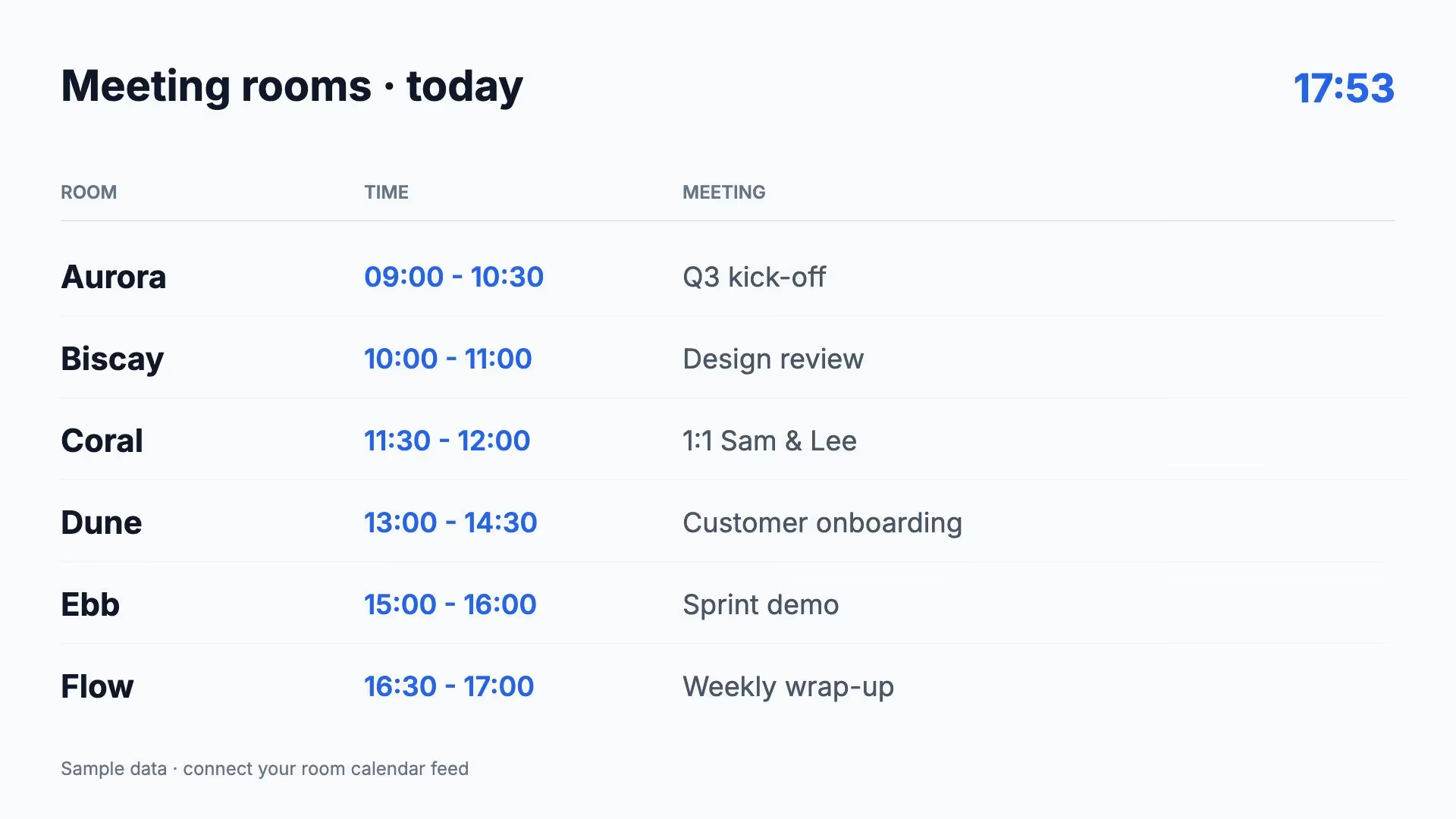
A room’s status belongs at its door, and the overview belongs where people look for a room. Each display gets the content that suits its spot.
The Meeting room availability app shows the room’s name, whether it is free or booked right now and the next booking. It reads the room’s calendar through an ICS link and refreshes every 60 seconds.
App guide →The Calendar app shows today’s bookings as a list or a day grid, from the same ICS link. You choose the colours and which hours to show, for example 8:00 to 18:00.
Calendar app guide →Put the Meeting rooms template next to a welcome for visitors. With a Google Calendar connection, each row fills with the current or next booking for that room.
How to bind data to a page →Lumicast shows what is in the calendar. Booking a room, extending a meeting or releasing a room early happens in Outlook or Google Calendar, just as it does now.
A touchscreen next to the door for booking a room on the spot, often with a light that turns from green to red. Useful when people often take a room without booking. It is a separate system, though, with its own hardware and its own management.
A display with the same player and the same management as your displays at reception and in the canteen. Anyone who sees a room is free books it in the calendar, and within a minute the room shows as booked.
Each room needs one link: the ICS feed of that room’s calendar.
In Outlook, Exchange and Google Workspace, every meeting room has its own calendar, which can be shared as an ICS link. Not sure where to find it? Your IT administrator can get it from the room’s settings.
In Lumicast, choose the Meeting room availability app under Content. Paste the link and enter the room’s name. If meeting titles run long, set a maximum number of characters.
Add the app to the playlist of the display next to the room. A display in the corridor gets its own playlist, where the overview can alternate with news or the lunch menu.
Start with one of these designs. Fill in the rooms yourself, or connect them to your calendar.
The same account also runs the welcome page at reception, the news in the canteen and the figures in each department. For each display, you choose what visitors and colleagues see.
The Meeting room availability and Calendar apps are among the essential apps, so you can use them with Solo. The Google Calendar connection needs Team.
From €17 per display per month
Solo billed yearly, or €21 monthly. Team: €20 per display per month billed yearly, or €25 monthly. All prices exclude VAT.
Compare plans →No. The display shows what is in the calendar. Booking, extending and cancelling happen in Outlook or Google Calendar. Anyone who sees a room is free books it there, and within a minute the display shows it as booked.
Yes, through the ICS link of the room’s calendar. It does not need a connection to a Microsoft account. Your IT administrator shares the calendar of each room that gets a display as an ICS link.
The app shows the meeting title as it appears in the calendar feed. Rather keep subjects out of the corridor? Share the calendar without details. When you publish a calendar in Outlook, you choose whether the link only shows when the room is busy, or titles and details as well.
The app fetches the calendar again every 60 seconds, so a new booking appears within a minute once the calendar has added it to the feed. Some calendars update their feed with a delay.
Any display that runs Lumicast, including small ones. On professional displays from Samsung, LG and Philips, Lumicast runs without a separate player. On other displays you connect, for example, a Pixie or a Raspberry Pi.
The status comes live from the calendar, so the display needs internet. If the connection is gone for more than a minute and a half, the display shows a notice that the content may be out of date. Once the connection is back, the notice disappears.
Yes. You can try Lumicast free for 14 days, without payment details. Start with one room: paste the ICS link, put the app on a display and see how it works with your calendar.
Put one room’s calendar on a display and see how it works. Questions about the calendar feed or the hardware? We are happy to help.
Try Team for 14 days. No payment details needed.