
A browser showing the sheet
A PC or stick opens the spreadsheet under a signed-in Google account. From a few metres away, a grid of small figures is hard to read, and when the session expires, there’s a sign-in page on the wall.

Plenty of lists already live in a spreadsheet: the standings, this week’s rota, the prices. Connect that sheet to Lumicast and every row gets a place in a design you can read from across the room. Change a cell and, by default, the new value is on your displays within 5 minutes.
Try Team for 14 days. No payment details needed.
A spreadsheet in a browser on a TV looks like the quickest route. For a display that hangs on a wall all day, it rarely is.
A PC or stick opens the spreadsheet under a signed-in Google account. From a few metres away, a grid of small figures is hard to read, and when the session expires, there’s a sign-in page on the wall.
Google then makes a public version of the sheet that anyone with the link can open without signing in. Fine for a price list, less so for a rota with people’s names on it.
Lumicast reads the tab you choose and places the values in a page you design yourself. The spreadsheet stays private and the display never signs in to Google.
Anything you keep in rows and columns. A few examples:
Dishes, treatments or products with their prices. Change a price in the sheet and it’s right on every display showing the list.
Today’s shifts, this week’s classes or who’s on reception. If you already keep the rota in Sheets, nothing needs retyping.
House points, sales per team or the running score of a campaign. Each row becomes a line on the display.
Companies per floor, departments per corridor or which room belongs to which team.
Filter rows on a column, for example only the lines where Show says yes. Sort them and set a limit, such as the top five.
Lumicast fetches the sheet every 5 minutes by default. You can set anything from every minute to every hour.
In the editor, design one line of your list, or start from a template or a draft by Lumi, our AI designer. Group that line and link it to the rows of your sheet, and it repeats for every row. Type / in a text layer and pick the column, named after the heading in your first row.
How to link data to a page →All you need is a Google account that can open the spreadsheet.
Create a data source with Google Sheets and sign in with the account that can open the spreadsheet. Lumicast only asks for read access.
Choose the spreadsheet and the tab. The first row gives the column names, and every row below it becomes a line of data.
Link the columns to your page, add the page to a playlist and choose which displays play it, and when.
These templates are made for lists on a display. Open one in Lumicast and replace the sample text with columns from your sheet.
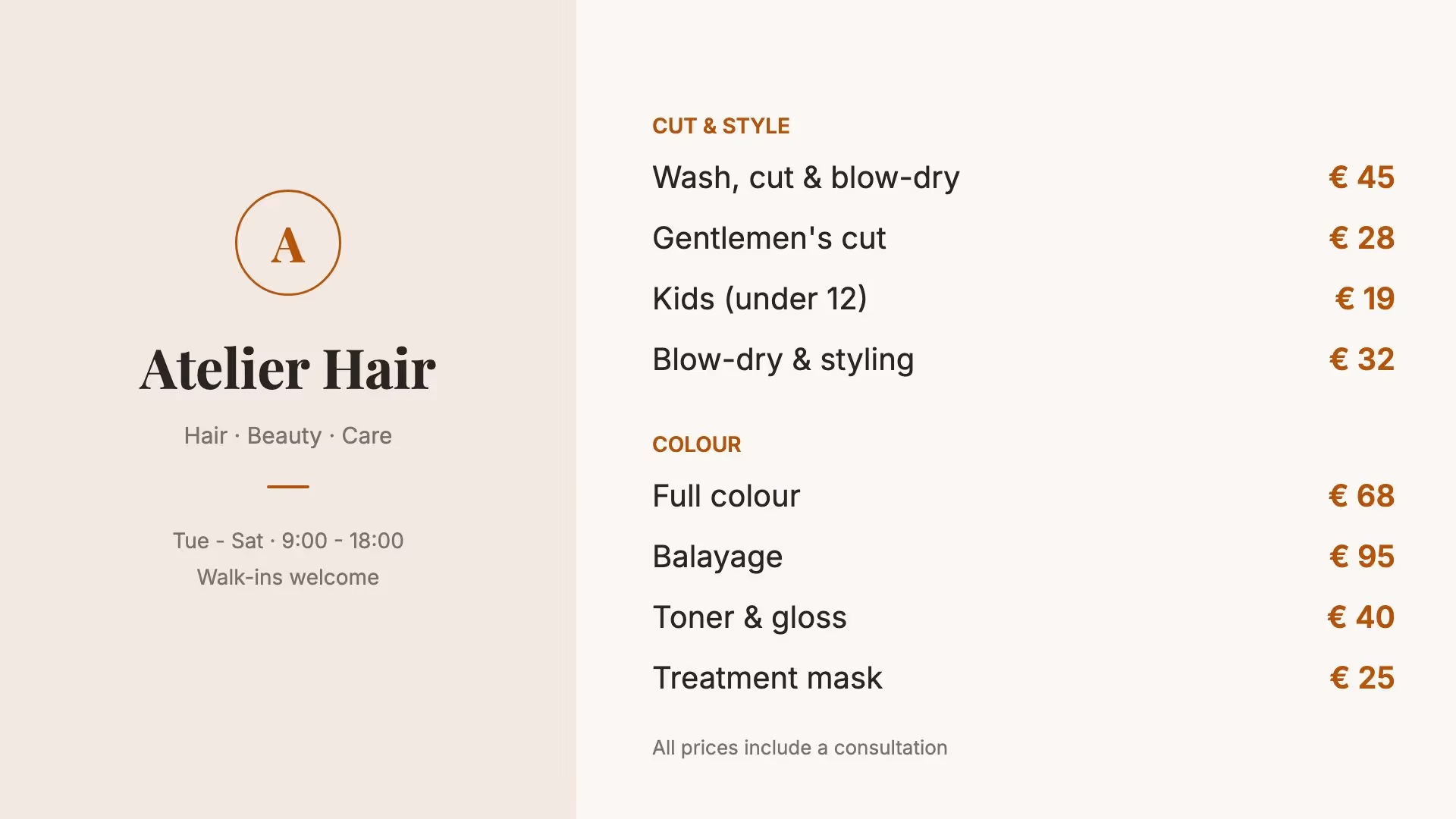
In a café, every menu board shows the prices from the same sheet. In a salon, it’s the treatments and their prices; on the production floor, today’s shifts.
Try it for 14 days with your own spreadsheet, no payment details needed. After that, you pay per display per month.
From €17 per display per month
Billed yearly. All prices exclude VAT.
Compare plans →Google Sheets files the connected account can open in Google Drive, including ones shared with that account. Save an Excel file as Google Sheets first. Files on a shared drive don’t appear in the list yet.
Values come through as they appear in the cells, so €4.50 stays €4.50 and 14:00 stays 14:00. Colours, fonts and cell formatting don’t: the page decides how it looks.
Lumicast fetches the tab every 5 minutes by default. For each data source, you can choose an interval from every minute to every hour. Once fetched, the new value appears on the displays showing the page.
Lumicast asks for read access to the connected account’s spreadsheets and sees the file names in Drive, so you can pick a sheet. It never changes anything in your spreadsheets. A separate Google account for the displays is best, shared only with the sheets that go on a display.
The display keeps showing the last data it received. Once that is well past its refresh time, the display shows a notice that the content may not be up to date. When the connection returns, the new data appears.
Yes. During the 14-day trial, you can connect your own Google account. If you do not choose a plan afterwards, the displays stop playing. Your workspace and content remain available.
Connect your spreadsheet during the trial and see how your data looks from across the room. Questions about the connection? We’re happy to help.
Try Team for 14 days. No payment details needed.